Add fast storage without drama. Follow the official size rules, pick a proper heatsink, and use this step-by-step to install and format.
Compatibility rules (must meet all)
| Spec | Requirement | Notes |
|---|---|---|
| Interface | NVMe M.2 PCIe 4.0 x4 | 2230/2242/2260/2280/22110 lengths |
| Speed | Sequential read ~5500 MB/s or higher | Real-world speeds vary; PS5 will test on first boot |
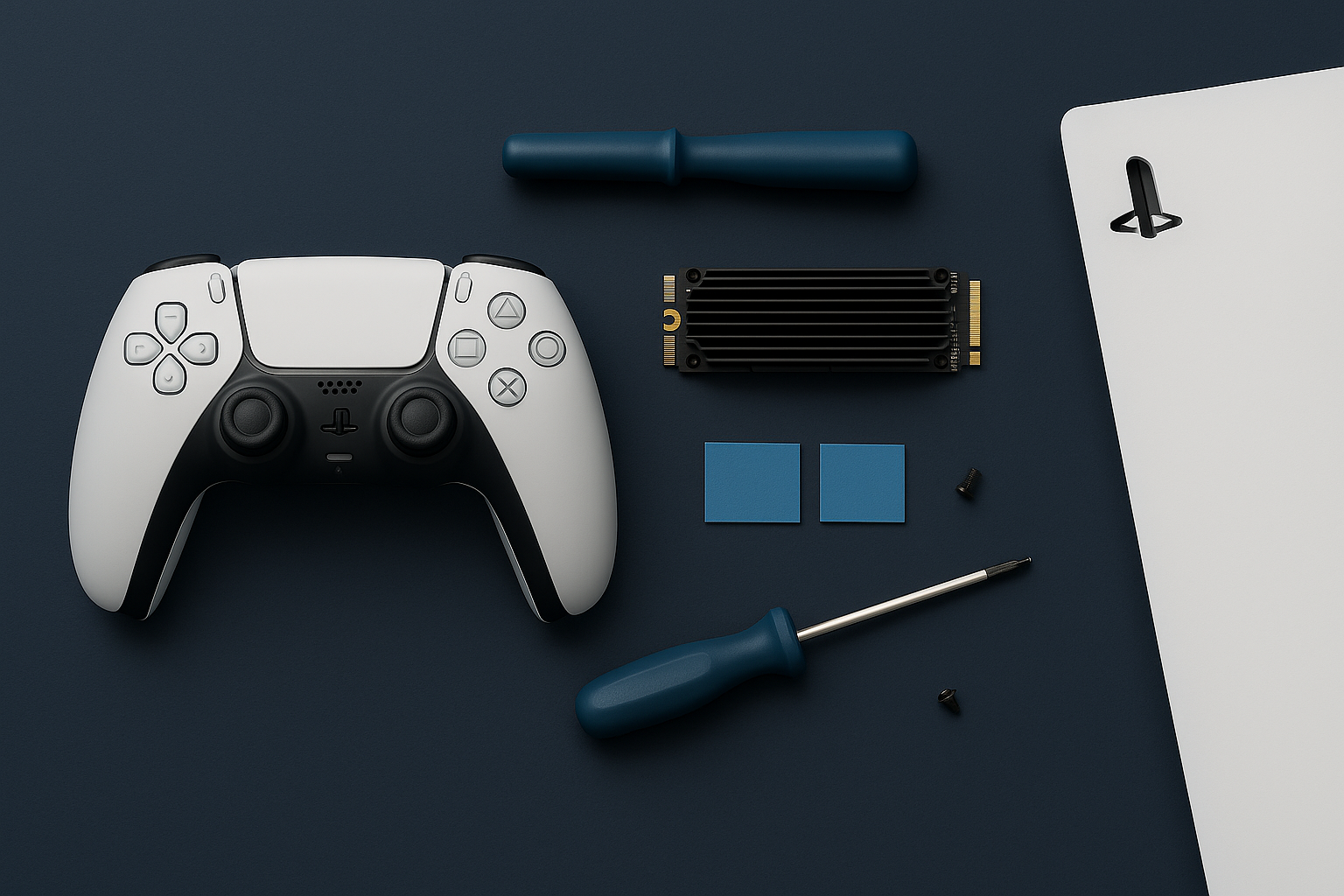
| Heatsink | Required (single or double-sided) | Total height must fit the bay; avoid too-tall fins |
| Capacity | 250 GB to 4 TB | 1–2 TB sweet spot |
Tools & prep
- Small Phillips screwdriver; your M.2 SSD + compatible heatsink.
- Back up clips/screens; power down fully and unplug. Work on a non-static surface.
Install (step-by-step)
- Lay PS5 flat; remove the side cover (pull corner, slide).
- Open the M.2 bay cover; remove the spacer screw.
- Insert the SSD at ~30° angle, notch aligned; press down and secure with the spacer + screw.
- Reattach bay cover and console cover.
- Boot PS5; follow the prompt to Format M.2 SSD.
If the console doesn’t see the drive, reseat the SSD and check the heatsink isn’t pressing on components.
Move games & manage storage
- Games → Storage → Move/Install → set PS5 games to install on M.2 by default.
- Keep ~10% free space for best performance; avoid filling to 100%.
- External USB drives can store PS5 games, but only M.2 or internal can run them.